Who can see a meeting
Each meeting is either private to the person who recorded it or shared with everyone in the workspace. Change it on any meeting, and choose the default for new ones. A workspace owner can also let admins open members’ private meetings.
Only me or everyone
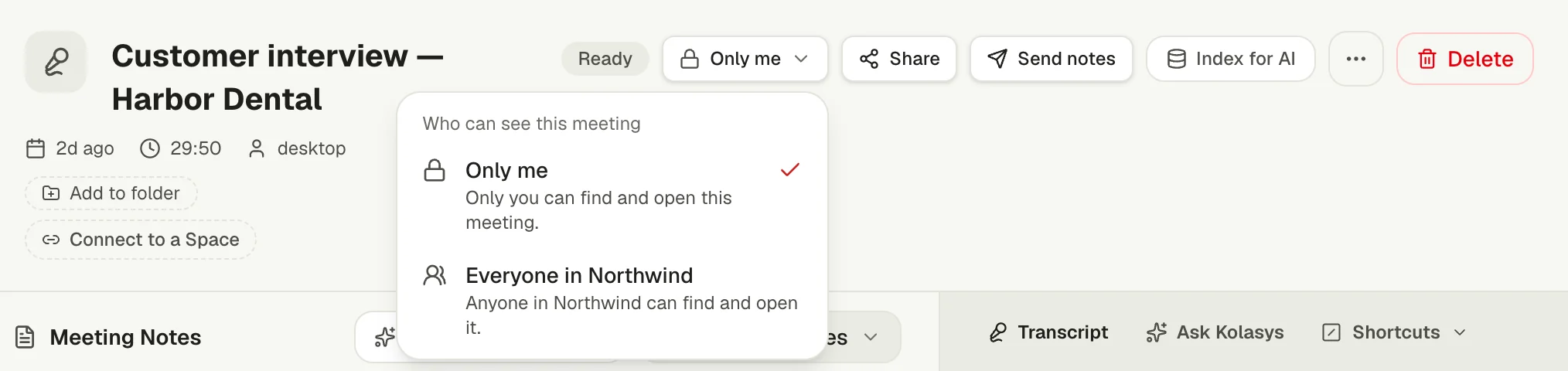
- Only me: only you can find and open the meeting. This is where new meetings start unless you change your default.
- Everyone in your workspace: anyone in the workspace can find and open it, ask Kolasys about it, and see it in folders, series and People.
Private meetings show a lock on the Meetings list. The Team filter at the top of Meetings shows only meetings shared with the workspace; My meetings shows the ones you recorded, private or shared.
Change it for a meeting
- Open the meeting. In the buttons at the top, click the one that shows who can see it now (Only me or Everyone in …).
- Pick the other option. It changes straight away.
On the Meetings list, the same choice is under Who can see this in a meeting’s ••• menu.
Choose the default for new meetings
Go to Settings › Preferences and, under Data, set Default visibility for my new meetings to Private or Everyone in workspace. It applies to meetings you record or upload from then on, from the web, the desktop app, the iPhone app, the meeting bot and imports. Meetings you already have don’t change.
Who can change it
The person who recorded the meeting, or a workspace owner or admin. Everyone else sees who can see it as a label, without a menu. An admin can only change meetings shared with the workspace or their own, so never someone else’s private meeting, even one they can open.
When admins can open private meetings
The workspace owner can turn on Owners and admins can open members’ private meetings in Settings › Members. It’s off by default, and only the owner can change it.
- While it’s on, owners and admins can open a member’s private meeting from Meetings › Members’ private. They can read the notes, transcript and action items and play the audio. They can’t change, share or send it.
- The workspace owner’s own private meetings stay private.
- A meeting with sensitive notes, such as clinical, legal or workplace investigation notes, opens only after an extra confirm that names the kind of meeting.
- Every open is logged. The owner sees who opened which meeting, and when, in Settings › Members.
- When the owner turns it on, everyone else in the workspace gets an email, and private meetings show Only me and workspace admins.
- Private meetings still stay out of admins’ meeting lists, search and Ask Kolasys, and out of the API and connected apps.
What sharing with the workspace does
- Teammates who keep When someone shares a meeting with me on in Settings › Notifications get an email.
- If your workspace posts notes to Slack or Notion, or sends webhooks, the meeting goes there now (once). See Post notes to Slack.
Making a meeting private again hides it from teammates in Kolasys. It doesn’t take back emails or Slack and Notion posts that already went out, and it doesn’t turn off its share link.
Was this helpful?
Still need help?
Email hi@kolasys.ai from the address on your account and we’ll reply by email.