Send notes to attendees
Email a meeting’s summary and action items to the people who were in it, by hand or automatically after each meeting.
Send the notes
- Open the meeting and click Send notes at the top. Or, on the Meetings list, click the meeting’s ••• and choose Send notes to attendees…
- Check who’s ticked. Untick anyone who shouldn’t get them.
- To add someone, type their address in Add an email address and click Add.
- Click Preview email to see it as someone outside your workspace will, then click Send to … people.
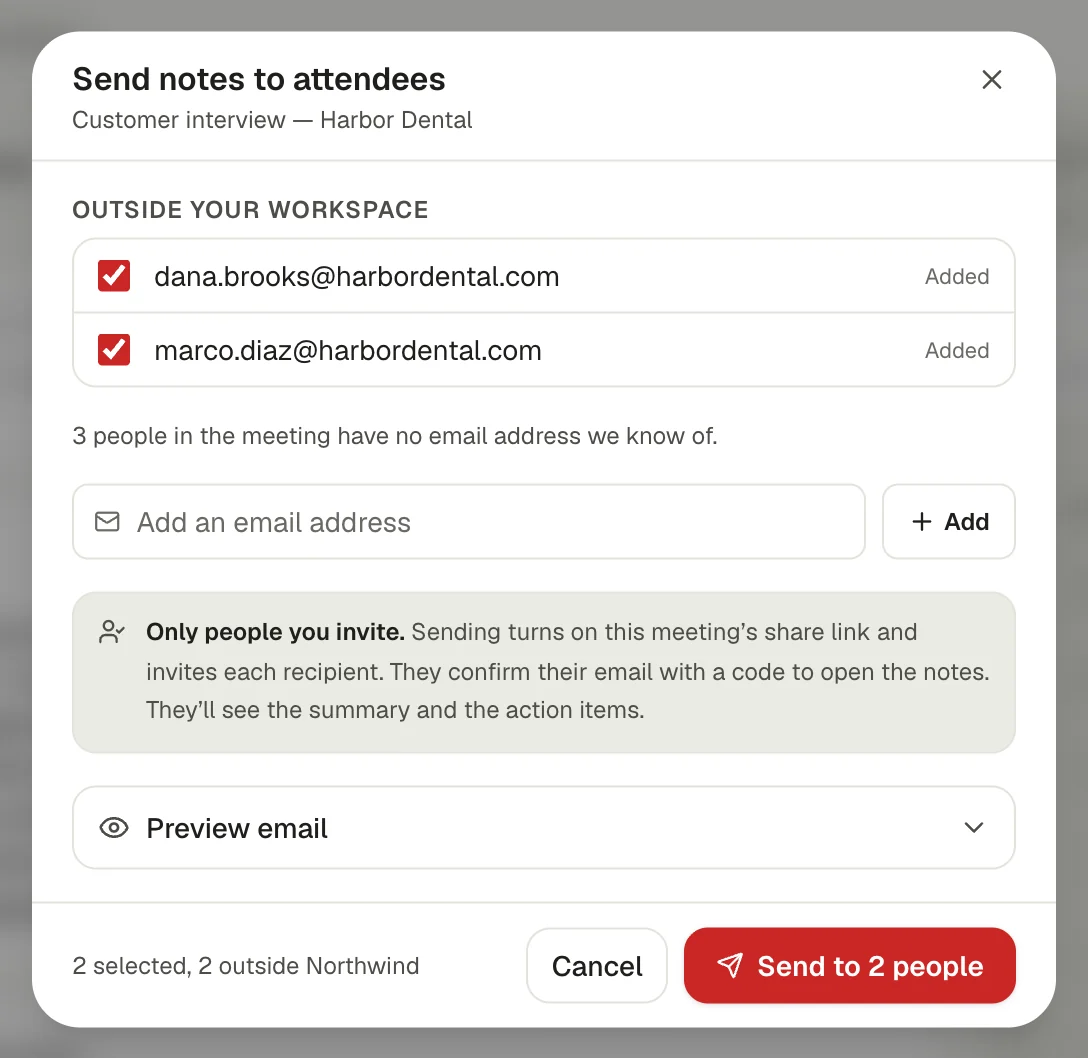
The button shows once the notes are ready, for the person who recorded the meeting and, for meetings shared with the workspace, for owners and admins. It works on every plan. Afterwards the meeting shows Notes emailed to … attendees under its title.
Who’s on the list
The people Kolasys knows were in the meeting, from the calendar invite and the meeting bot, grouped into In … (your workspace and your company’s email domain) and Outside your workspace.
- Everyone who hasn’t had these notes yet is ticked.
- People who already got them show Sent and a date, unticked. The same address isn’t emailed the same notes twice within 10 minutes.
- Opted out, Bounced and Marked as spam can’t be ticked.
- You can send to up to 50 people at a time.
What they get
An email titled “Notes:” and the meeting title, with your name as the sender. It has the short summary, the action items and who owns them, and a View full notes button. At the bottom is a link to stop getting notes from your workspace.
How they open the full notes
View full notes opens the meeting’s share link. The window tells you which case applies before you send:
- If the link is off, sending turns it on as invite-only and invites each person. They confirm their email with a code to open the notes. A link you’ve never set up shows the summary and action items, not the transcript.
- If the link is already on for anyone, it stays that way: anyone with the link can open it.
- If the link had expired, sending turns it back on without an expiry.
See Share a meeting with a link to change what the link shows.
Send them automatically
- Go to Settings › Notifications.
- Under Meeting notes to attendees, turn on Email my meeting notes to attendees automatically.
- Under Send them to, pick Only people in my workspace or Everyone on the invite.
- Turn on Include meetings only I can see if your private meetings should be sent too.
It’s off by default and applies only to meetings you record. Each meeting is emailed once, when its notes are ready. Meetings too short to have notes are skipped, and so are meetings with more than 50 people.
People who don’t want them
Anyone who clicks the link at the bottom of a notes email stops getting notes from your workspace, from everyone in it. They show as Opted out in this window. See Stop getting notes emails.
Was this helpful?
Still need help?
Email hi@kolasys.ai from the address on your account and we’ll reply by email.