Folders and series
Group meetings into folders you make yourself. Recurring meetings are grouped into series for you. Ask questions about everything in one.
Folders and series
- Folders are yours to fill. A meeting only goes into a folder when someone adds it, and it can be in more than one.
- Series are made by Kolasys: meetings with similar titles, like a weekly standup, are grouped on their own.
Both are in the sidebar, under Folders and Series. The sidebar shows five of each; click See all for the rest. The Series section appears once Kolasys has found one.
Make a folder
- Click New folder under Folders in the sidebar, or on the Folders page.
- Type a Folder name and click Create folder.
Add a meeting to a folder
- Open the meeting and click Add to folder under its title (Folder if it’s already in one). Or, on the Meetings list, click the meeting’s ••• and choose Add to folder…
- Click a folder to tick it. To make a new one here, click New folder, type a name and click Create.
- Click Done.
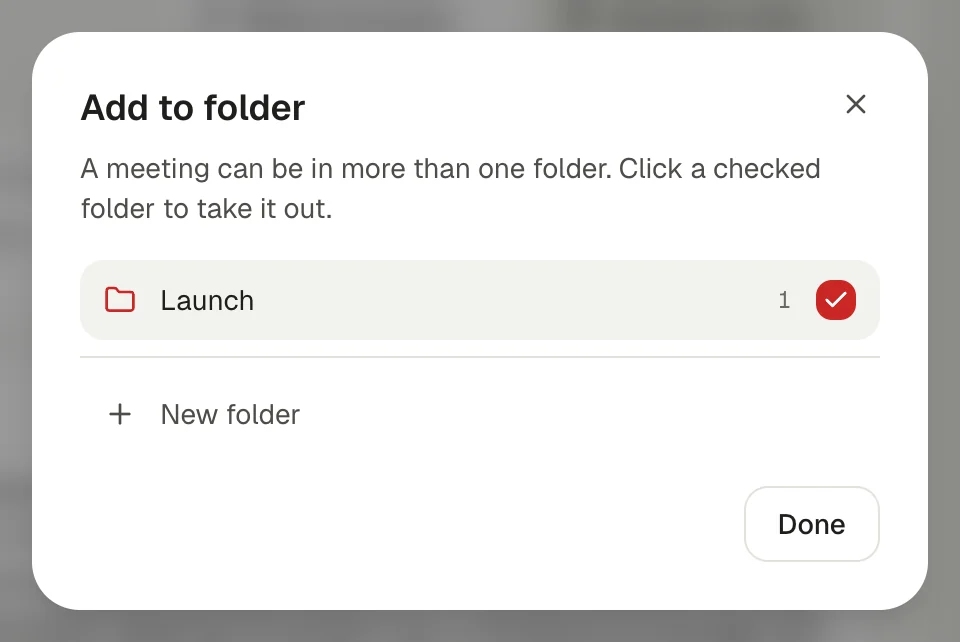
The folders a meeting is in show as small labels under its title; click one to open that folder. To take a meeting out, click a ticked folder in the same window, or open the folder and click the remove button at the right of the meeting’s row.
How series work
When a meeting’s notes are ready, Kolasys compares its title with your other meetings. If it matches an earlier one (dates and small words don’t count), the two become a series, and later meetings with a matching title join it.
- A series shows Grouped automatically by title under its name.
- If a meeting landed in the wrong series, open the series and click the remove button on its row. A series with no meetings left disappears.
- Series can be renamed, but not deleted: the next matching meeting would start it again.
Rename or delete
Open the folder or series and click its name to edit it, or click ••• at the top right and choose Rename. The same menu is on each row of the Folders and Series pages.
To delete a folder, choose Delete folder in that menu and confirm. Only the folder goes: its meetings stay in Meetings.
Ask about a folder or series
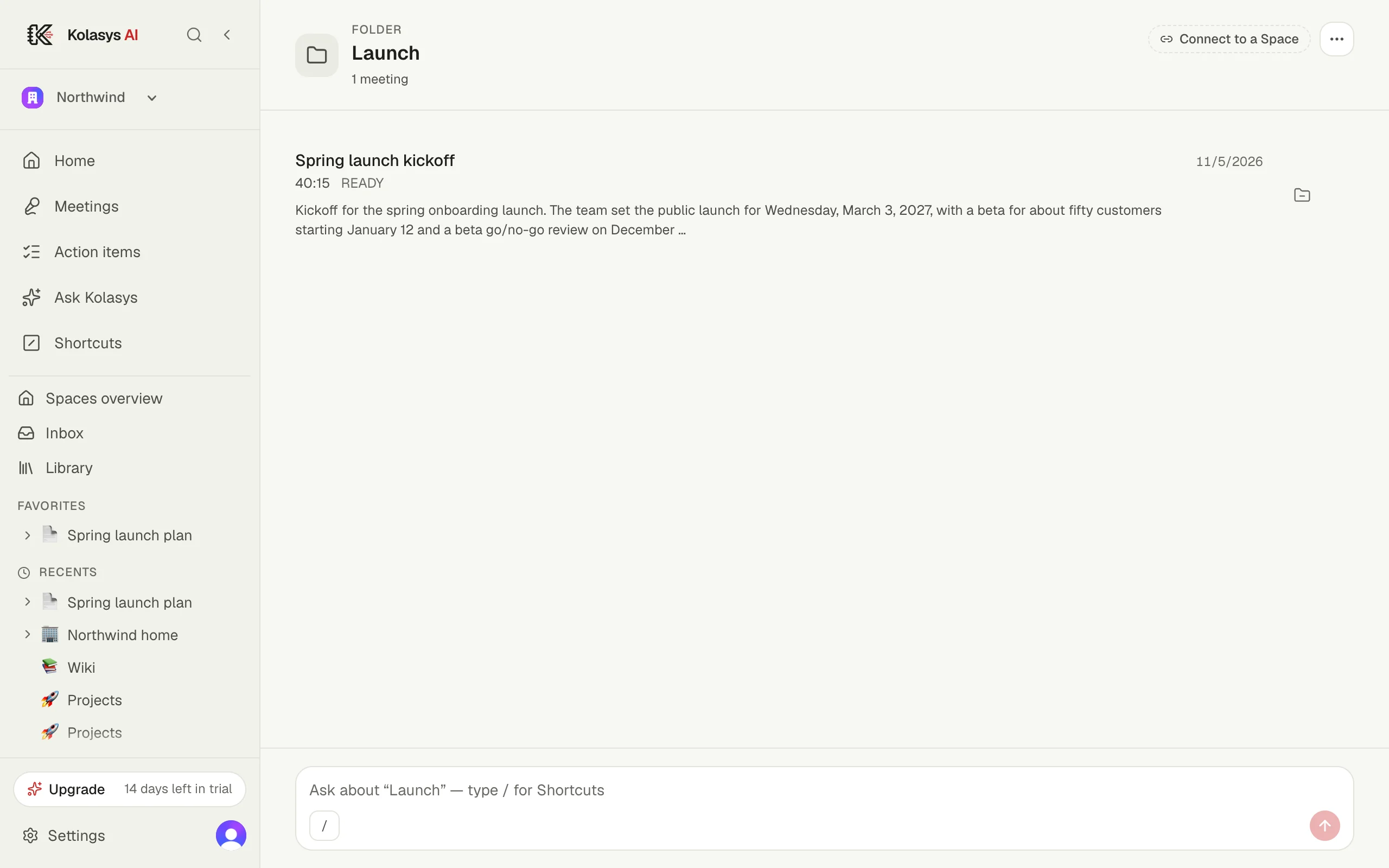
At the bottom of a folder or series page, type a question in Ask about “…” — type / for Shortcuts. Kolasys answers from the meetings in it, for example “What did we decide about pricing across these calls?”. Type / to run a saved Shortcut on the whole folder.
See Ask Kolasys about your meetings and Shortcuts: saved prompts.
Who sees them
Folders and series belong to the workspace. Everyone in it sees them, but only with the meetings they’re allowed to open: putting a private meeting in a folder doesn’t share it. A folder or series holding only someone else’s private meetings doesn’t show for you at all.
Anyone in the workspace can rename a folder or series, add and remove meetings they can open, and delete a folder. See Who can see a meeting.
Was this helpful?
Still need help?
Email hi@kolasys.ai from the address on your account and we’ll reply by email.