Shortcuts: saved prompts
A Shortcut is a prompt you save once and run whenever you need it: on a meeting, a folder, everything, or your next meeting. Use the built-ins, make your own, and share them with your team.
What a Shortcut is
A Shortcut is a saved question or instruction for Ask Kolasys, like “Write a follow-up email to the attendees”. Each one says what it runs on:
- One meeting: the meeting you have open, or one you pick.
- A folder: the meetings in one folder.
- Everything: recent meetings, open action items and a search of all of them.
- Next meeting: your next calendar event, and past meetings with the same people.
Shortcuts don’t change a meeting’s notes. To change how notes are written, use a template. See Choose and create note templates. Shortcuts work on every plan.
Run a Shortcut
- In any Ask box, type / and pick one. Keep typing after the slash to filter the list.
- On a meeting’s page, click Shortcuts next to the Ask Kolasys tab. It lists the ones that run on one meeting.
- On the Shortcuts page, open one and click Run.
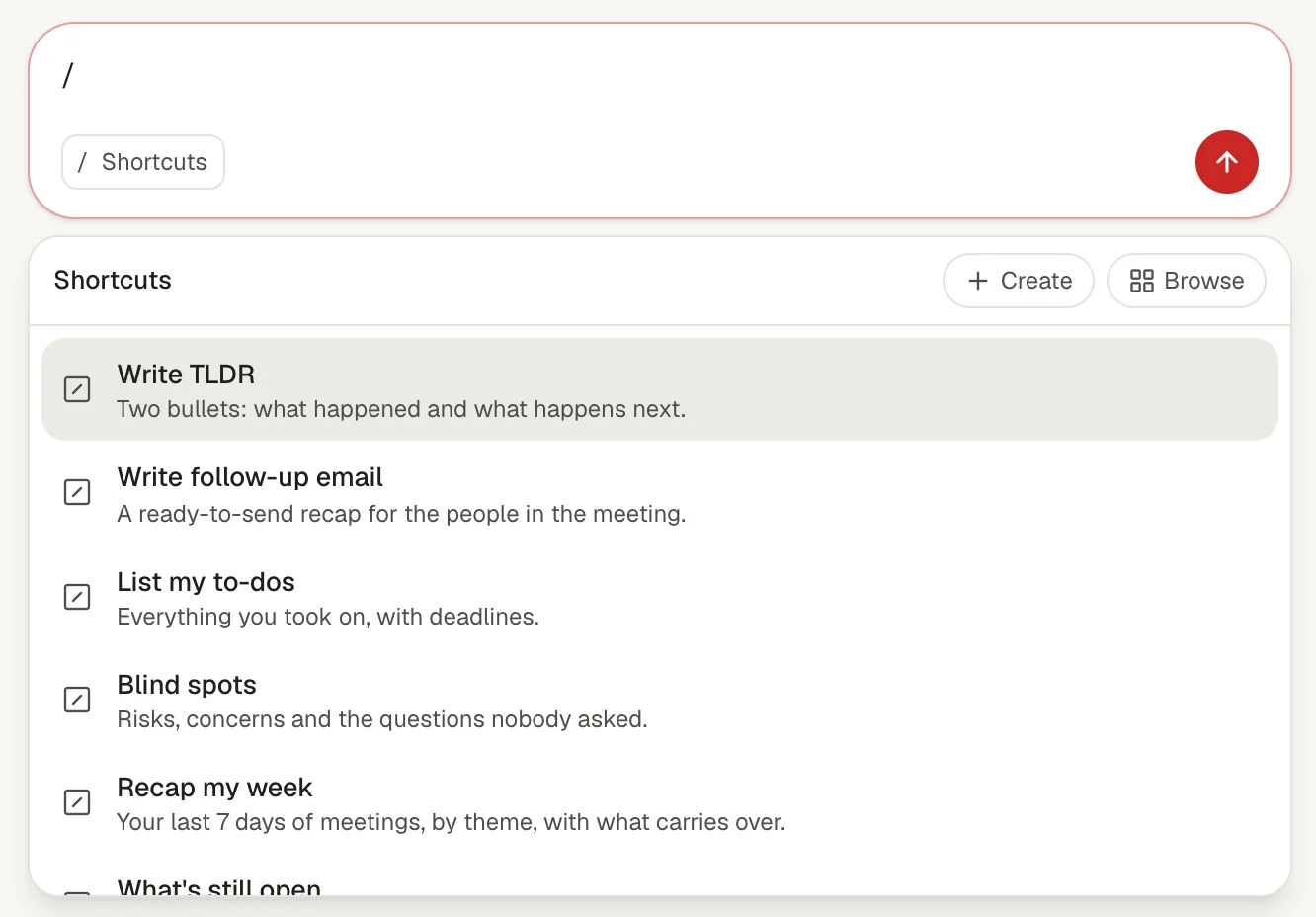
The answer appears as a conversation in Ask Kolasys. If a Shortcut needs a meeting or a folder and none is open, you’re asked to Pick a meeting or Pick a folder first.
The Shortcuts page
Click Shortcuts in the sidebar. There are three tabs:
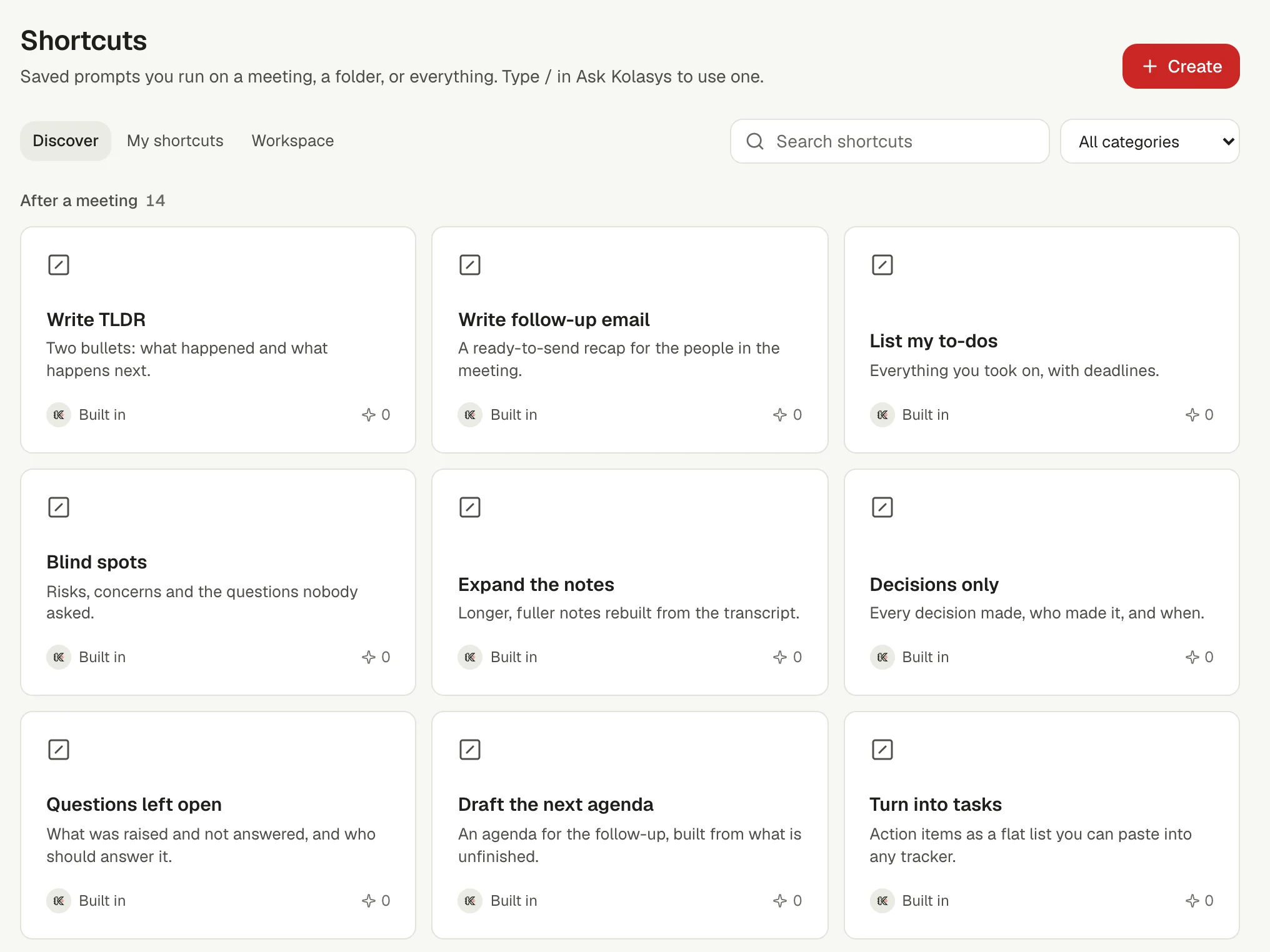
- Discover: the built-in Shortcuts, like Write TLDR, Write follow-up email, List my to-dos, Recap my week, Summarize this folder and Prep next meeting.
- My shortcuts: the ones you made.
- Workspace: the ones your teammates shared.
Use Search shortcuts or the category list (After a meeting, Across meetings, Before a meeting, Folders) to narrow them down. Each card shows who made it and how often it’s been run. Click a card to read its full prompt.
Make your own
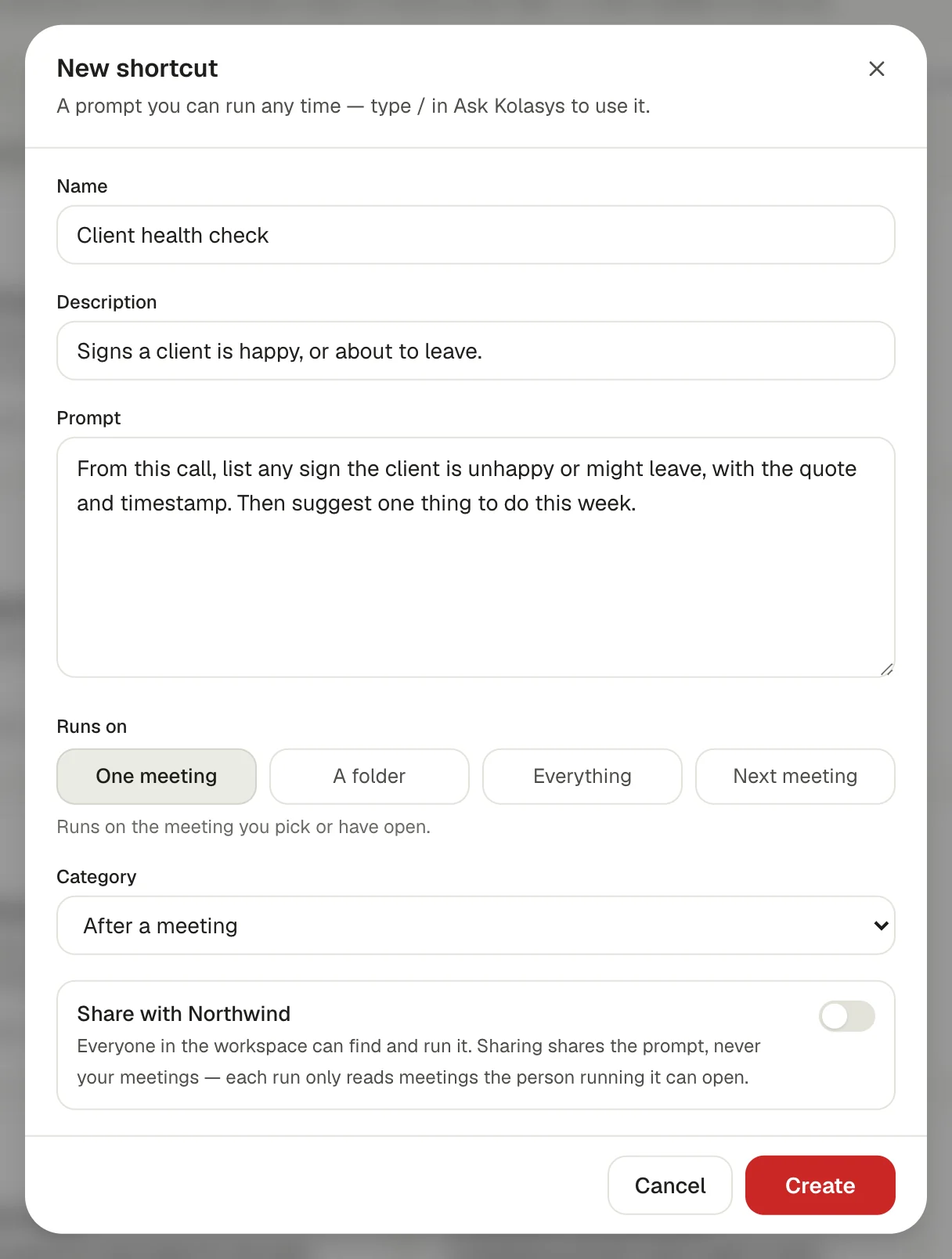
- On the Shortcuts page, click Create. (Or choose Create at the bottom of a meeting’s Shortcuts menu.)
- Give it a Name and a one-line Description.
- Write the Prompt. Say exactly what you want back, and in what shape.
- Choose what it Runs on, and a Category.
- Turn on Share with your workspace if your team should have it too.
- Click Create.
Share with your workspace
Sharing a Shortcut shares the prompt, never your meetings. When a teammate runs it, it only reads meetings they can open.
- You can edit or delete the Shortcuts you made: open one and click Edit or Delete.
- Workspace owners and admins can also edit or delete Shortcuts shared with the workspace.
- Built-in Shortcuts can’t be changed. Use Make a copy.
Was this helpful?
Still need help?
Email hi@kolasys.ai from the address on your account and we’ll reply by email.