Edit, refine and restore notes
Fix a section, add your own notes, shorten or expand the summary, change a name everywhere, redo the transcript, and go back to the notes as they were.
Edit a section
- Click Edit at the top right of the section.
- Change the text. You can use Markdown, like - for a bullet.
- Click anywhere outside the box to save, or press ⌘Enter on a Mac or CtrlEnter on Windows. Press Esc to cancel.
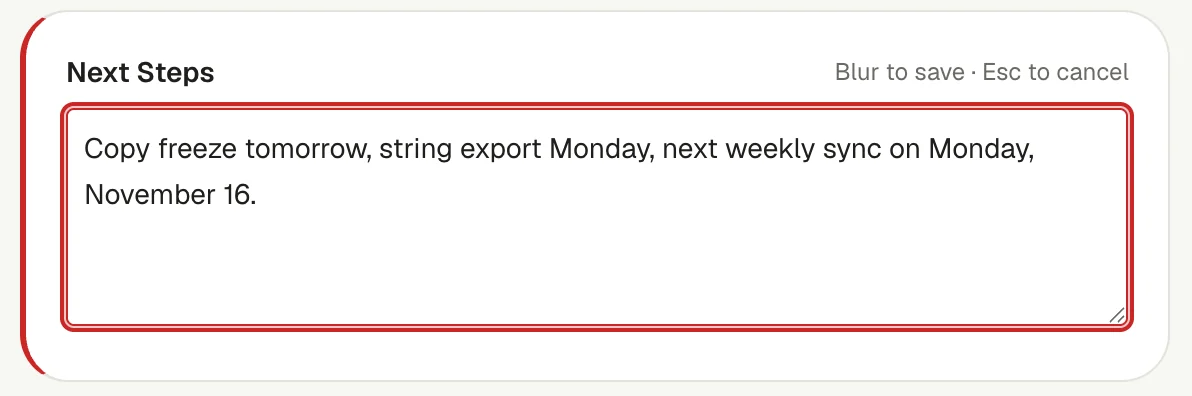
Anyone who can open the meeting can edit its notes, and everyone sees the change. The summary itself isn’t edited this way: use Refine Summary, or Find & replace for a single word.
Add your own notes
Type in My notes above the summary. Only you can see these, and they save as you type. They’re the same notes you write during the meeting in the Mac or iPhone app.
If you wrote prep notes on the calendar event before the meeting, they show in Your prep notes. Click Open event to change them.
Shorten or expand the summary
Click Refine Summary and choose Condense for a two-to-three sentence version, or Elaborate for more context and detail. The old summary is saved first, so you can restore it.
Change a name or word everywhere
Useful when a name was misheard: “Patrick” should be “Kameron”.
- Open the ⋯ menu and choose Find & replace, or click Replace above the transcript.
- Type the word in Find and the new one in Replace with. Leave Replace with blank to remove the word. Whole words only is on by default.
- Check the count of matches in the transcript, speaker names, summary, note sections, action items and soundbites.
- Click Replace.
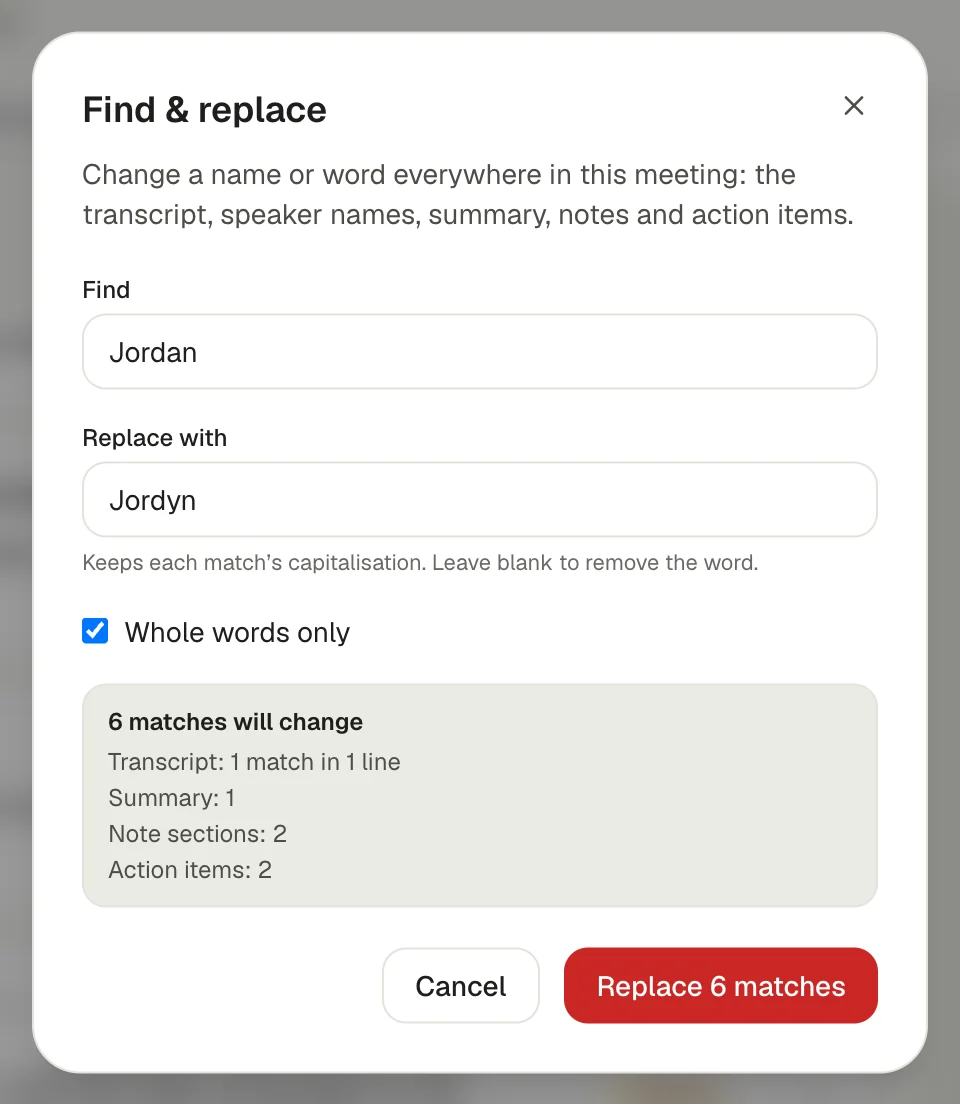
Each match keeps its capitalization. Changed your mind? Click Undo right there, or choose Undo last replace in the ⋯ menu. Undo works for 24 hours, until the next replace.
Rename or regenerate the title
Click the title at the top of the page, type, and press Enter. To have Kolasys write a new one from the transcript, choose Regenerate title in the ⋯ menu.
Re-transcribe a meeting
Try this when the transcript is in the wrong language, or you want more accurate word timings.
- Open the ⋯ menu and choose Re-transcribe. (It’s also Re-transcribe audio… in the template button’s menu.)
- Pick the Language. Choose Auto-detect for a meeting that switches languages.
- Pick the Quality: Standard is faster; High is slower, with word-level accuracy.
- Click Re-transcribe.
The current transcript is replaced, and the notes are written again from the new one. Edits you made to note sections are replaced too, but a copy is saved.
Restore the previous version
Kolasys saves a copy of the notes before it changes them: before rewriting them (with a template, or after a re-transcribe), before refining the summary, and before a restore.
- Open the ⋯ menu and choose Restore previous version. Under it you’ll see when that copy was saved and why.
- Click Restore.
The current notes are saved first, so restoring again switches back. Action items you ticked or changed since stay as they are.
Copy or export notes
- Copy checklist on the action items copies them as a Markdown checklist.
- To export the notes of every meeting you recorded, go to Settings › Profile and click Export CSV next to Export my meeting notes.
- To send notes somewhere automatically, see Post notes to Slack and Send notes to Notion.
There’s no button to download one meeting’s notes as a document.
Was this helpful?
Still need help?
Email hi@kolasys.ai from the address on your account and we’ll reply by email.