Send notes to Notion
Add a page to a Notion database for every finished meeting, with the summary, the notes and the action items as to-dos.
Get Notion ready
- Go to notion.so/my-integrations and create an internal integration for your Notion workspace. Copy its secret.
- Pick or create the database the meeting pages should go in. Its title property must be called Name. Add a date property called Date for the meeting’s date.
- Open the database’s ••• menu in Notion and add your integration under Connections, so it can add pages.
- Copy the database ID: in the database’s URL, it’s the long part after your workspace name and before the ?.
Connect it in Kolasys
You need to be a workspace owner or admin. It works on every plan.
- Go to Settings › Integrations.
- Under Notion, paste the secret into Notion Integration Secret and the ID into Target Database ID.
- Click Save, then Test. A test page should appear in the database.
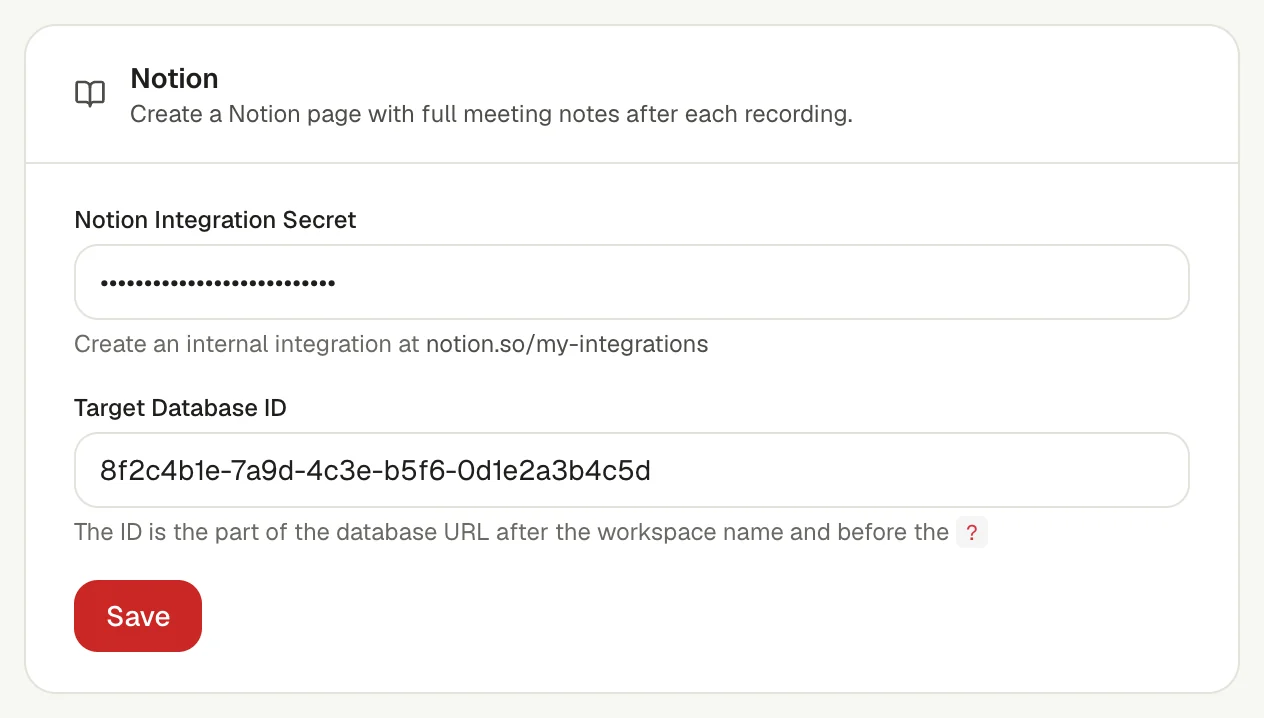
The secret isn’t shown again after you save. To change the database, enter the secret and the new ID together and save. Disconnect stops sending; pages already in Notion stay.
What each page has
- Name: the meeting title. Date: the day of the meeting.
- The summary at the top, then each section of the notes.
- The action items as to-dos, with their priority.
- A View in Kolasys AI link back to the meeting.
The page is a copy: editing the notes in Kolasys later doesn’t update it.
Which meetings are sent
The same ones as Slack: each meeting once, when its notes are ready, if it’s shared with the workspace, or every meeting if an admin turned on Post private meetings too. See Post notes to Slack for the details.
Was this helpful?
Still need help?
Email hi@kolasys.ai from the address on your account and we’ll reply by email.