Action items
Kolasys lists the action items from each meeting. Tick them off, assign them, give them a due date, add your own, and see everything that’s open on the Action Items page.
Action items on a meeting
Action Items is at the bottom of a meeting’s notes. Each item shows who it’s for, when it’s due, and its priority. Items people added say so (Added by you, Added by Maya); items Kolasys found and someone reworded say Edited.
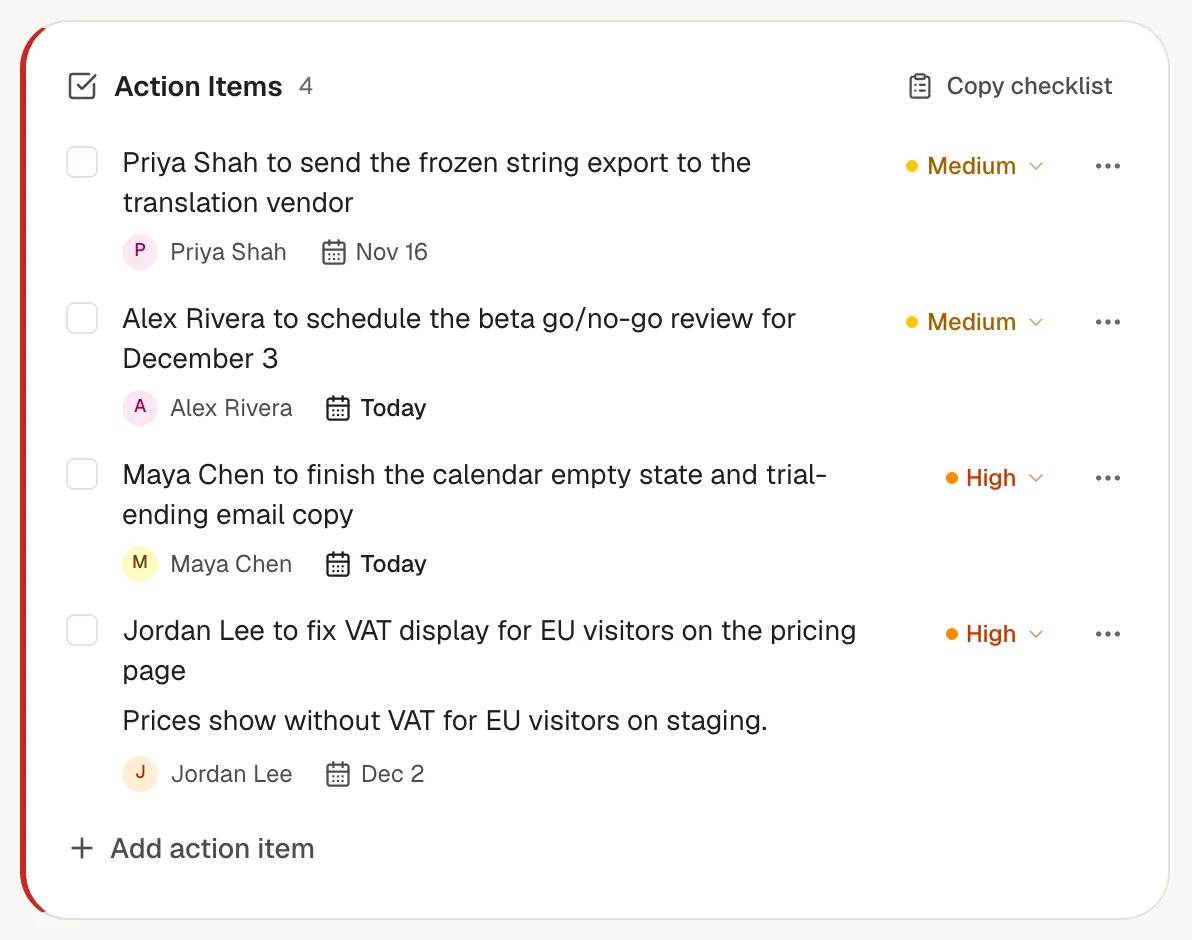
Tick the box to mark one done. Click Copy checklist to copy them all as a Markdown checklist to paste anywhere.
Change an action item
- Click the text to reword it. Press Enter to save or Esc to cancel.
- Click the owner to pick a teammate, or type any name for someone outside the workspace. Choose Unassign to clear it.
- Click the due date to pick Today, Tomorrow, Next week or Pick a date, or No due date. Overdue items say so.
- Change the priority: Low, Medium, High or Urgent.
- The ⋯ menu has Edit text, Assign…, Set due date… and Delete. After deleting, click Undo in the message to bring it back.
Add one yourself
- Click Add action item under the list.
- Type it in What needs doing? and, if you like, pick who and when.
- Press Enter. The box stays open for the next one; press Esc to close it.
If the notes are rewritten later, items people ticked, changed or added are kept.
Make one from the transcript
- On the Transcript tab, select the words, then click Make action item. Or hover over a line, click its ⋯ and choose Make action item.
- Check the text, and pick who and when.
- Click Add action item.
The item remembers the moment it came from: click its time to jump back to that point in the transcript.
The Action Items page
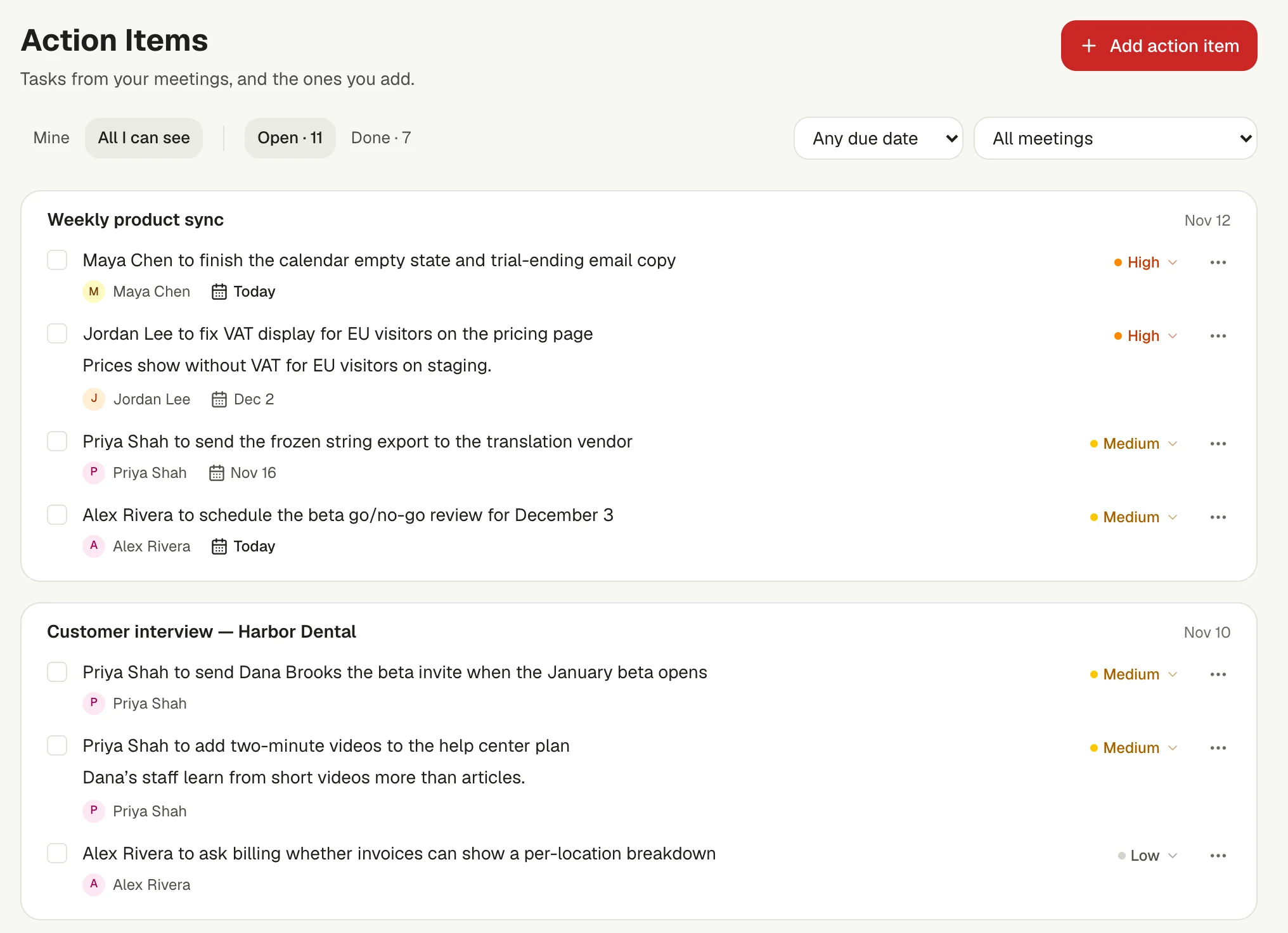
Click Action items in the sidebar to see items from every meeting you can open, grouped by meeting, newest first. Narrow the list with:
- Mine (assigned to you, or added by you for nobody) or All I can see.
- Open or Done.
- Any due date, Overdue or Due this week.
- All meetings, or one meeting.
Click Add action item at the top to add one to any meeting with notes: choose it under Choose a meeting….
Who can change what
- Anyone who can open the meeting can tick items, change their priority and add new ones.
- Rewording, reassigning, changing the due date and deleting are for the person who added the item, the person it’s assigned to, the person who recorded the meeting, and workspace owners and admins.
Was this helpful?
Still need help?
Email hi@kolasys.ai from the address on your account and we’ll reply by email.