Write with blocks and the / menu
Every paragraph, heading, list, image or table on a page is a block. Add them with /, and move or change them with the handle.
Add a block with /
Type / on an empty line to open the block menu, keep typing to filter it, and press Enter.
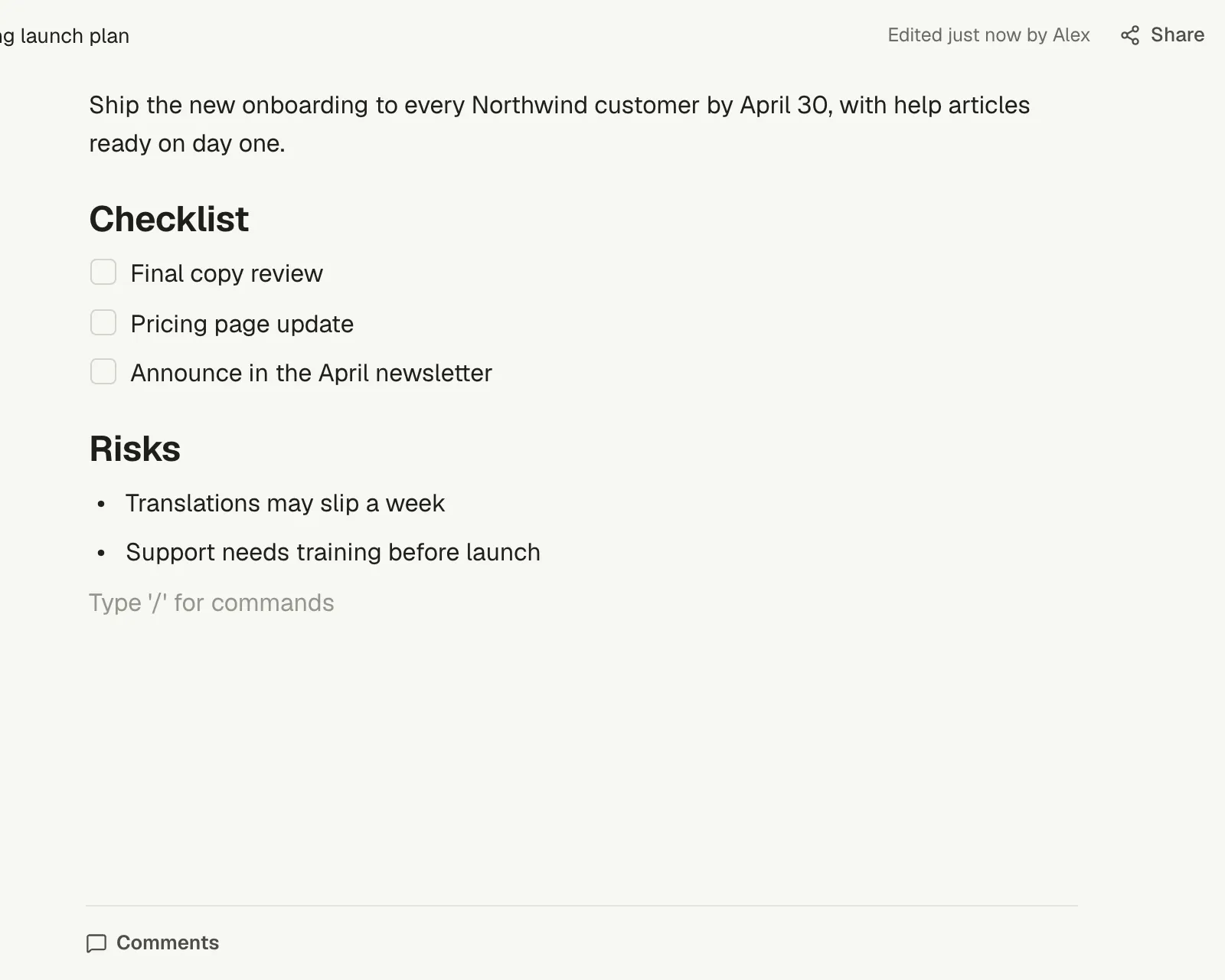
- Basic blocks: Text, Heading 1, 2 and 3, To-do list, Bulleted list, Numbered list, Toggle list, Quote, Callout, Divider, Code, Simple table and Columns.
- Pages & data: Page, Link to page, Table database, Board database and Linked view of database.
- Media: Embed (YouTube, Vimeo, Loom, video, audio, PDF or a web page), Image, File and Web bookmark.
- Kolasys AI: Summarize page and Find action items. See Use AI in Spaces.
Markdown shortcuts
Type these at the start of a line, then a space:
- #, ##, ### for headings
- [] for a to-do, - for a bullet, 1. for a numbered list
- > for a toggle, " for a quote
- --- for a divider, ``` for code
Format text
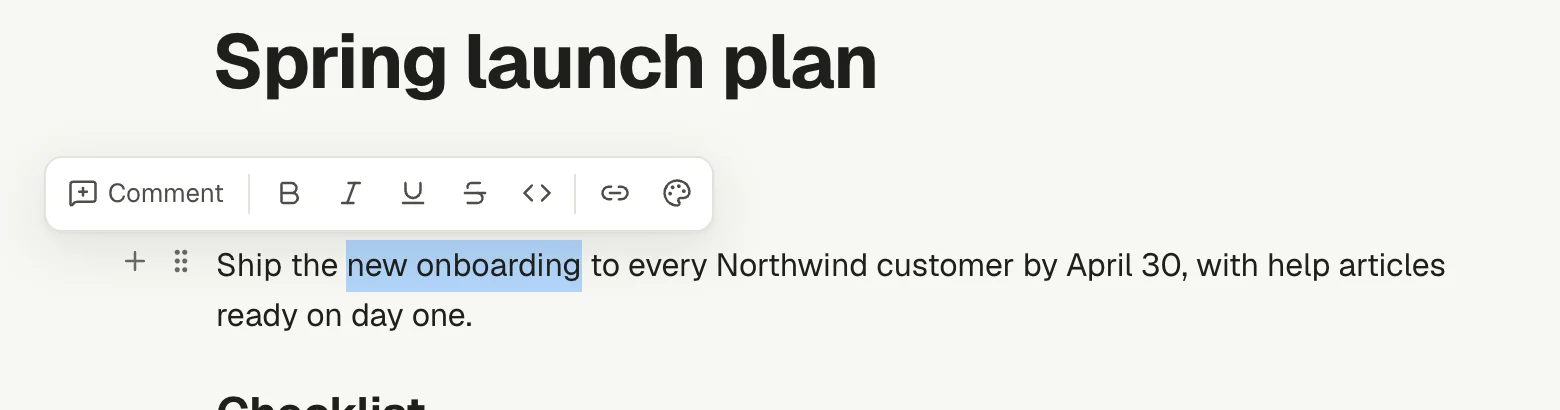
Select text to show the formatting bar:
- Bold ⌘B, italic ⌘I, underline ⌘U, strikethrough ⌘⇧S and inline code ⌘E
- Link ⌘K: paste the address and press Enter
- Text color and Highlight
- Comment: see Comment and suggest edits
On Windows, use Ctrl instead of ⌘.
Move and change blocks
Hover over a block to show its handle ⋮⋮ on the left. Drag it to move the block, click it for options, or Shift-click to select several blocks.
- Turn into: change a paragraph into a heading, list, quote and so on.
- Color, Copy link to block, Duplicate (⌘D) and Delete.
- Move up (⌘⇧↑) and Move down (⌘⇧↓).
Was this helpful?
Still need help?
Email hi@kolasys.ai from the address on your account and we’ll reply by email.