Add meetings to a Space
Bring meetings, a recurring series or a whole folder into a Space, so their notes and action items sit next to the team’s work. Nothing moves out of its folder.
Add several meetings at once
- Go to Meetings.
- Tick the box to the left of each meeting you want. Hold Shift and tick another to select every meeting in between.
- Click Add to Space in the bar at the bottom, then Add next to the Space.
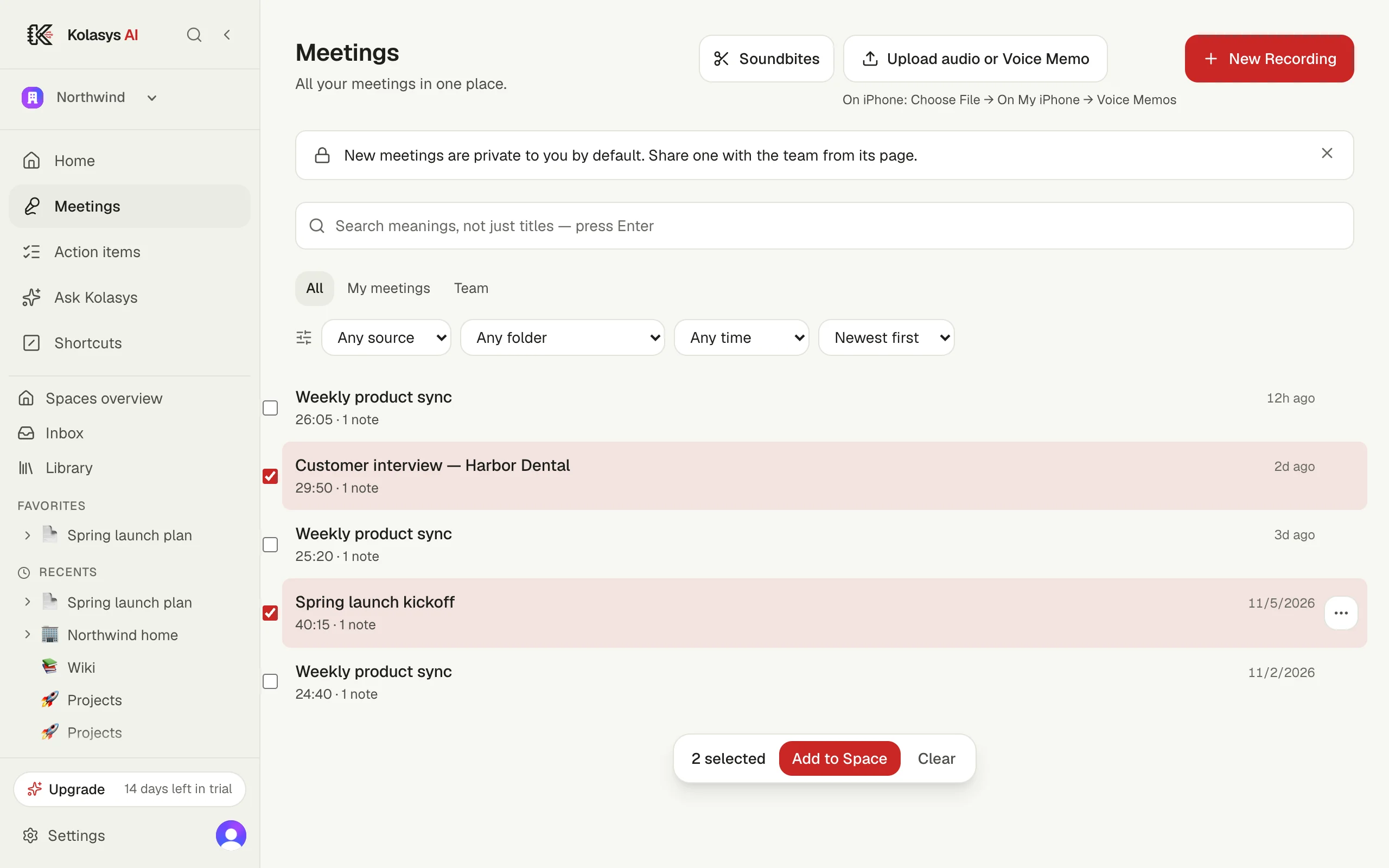
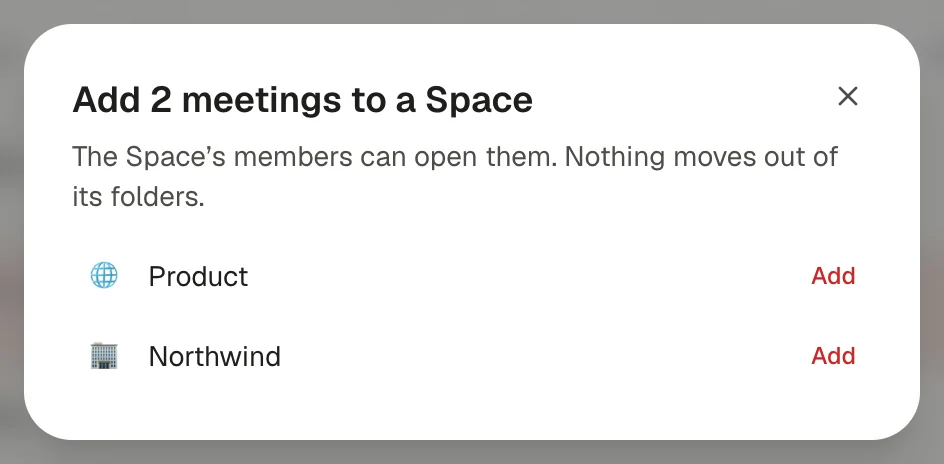
The meetings stay where they are: they’re added to the Space, not moved out of their folders. Press Esc or click Clear to unselect.
Add one meeting
- On the Meetings list, click a meeting’s ••• and choose Add to Space….
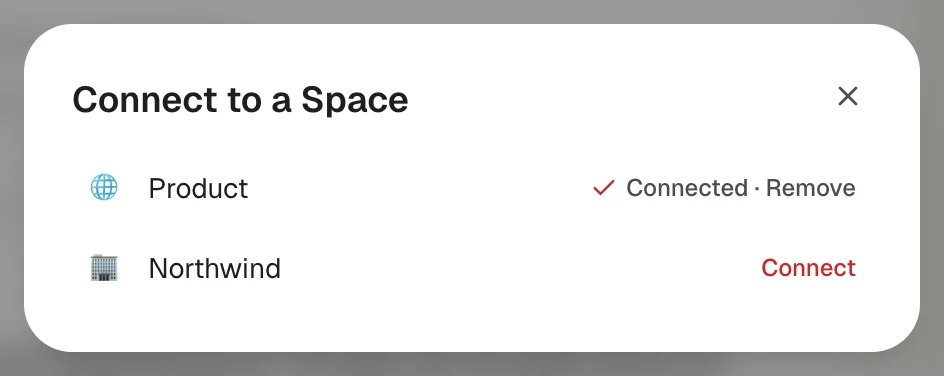
- Or open the meeting and click Connect to a Space. Spaces it’s already in show Connected · Remove.
Drag meetings onto a Space
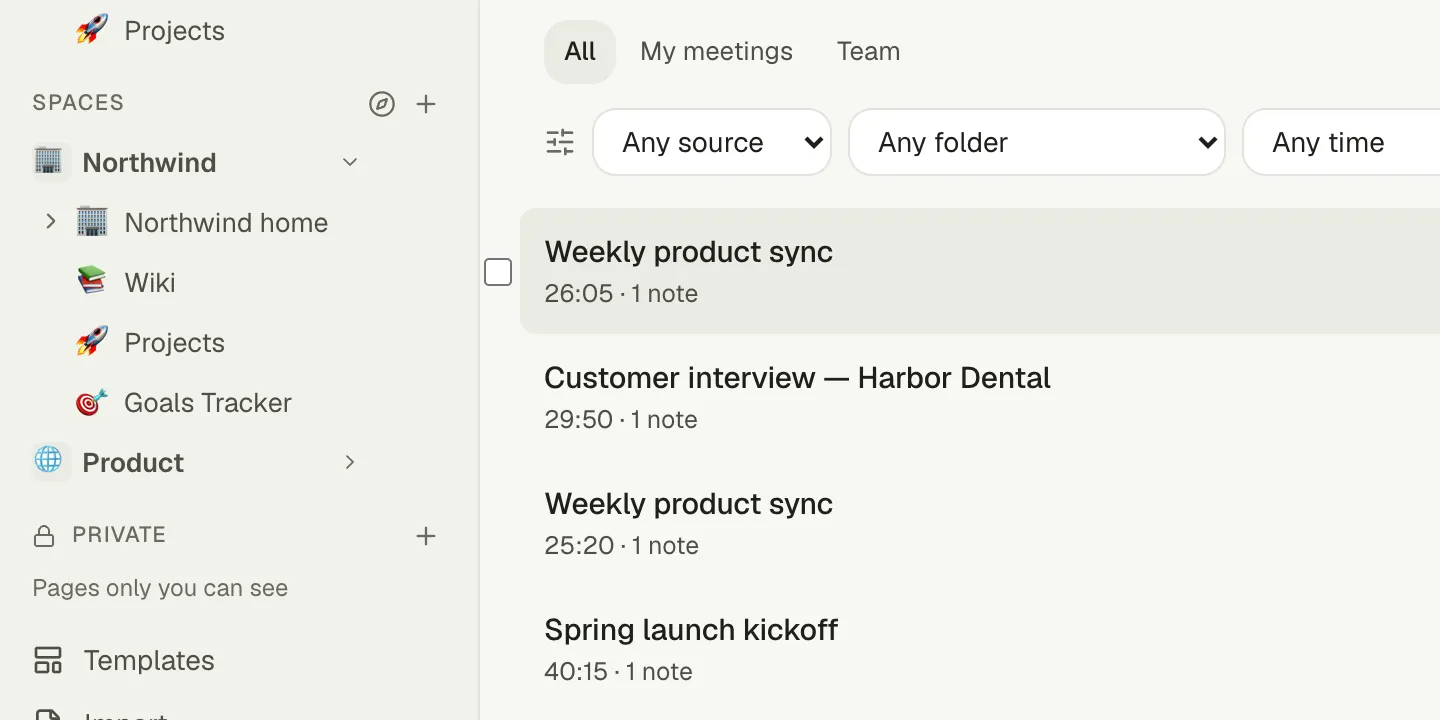
Drag a meeting from the Meetings list onto a Space in the sidebar. If you’ve ticked several, dragging one of them brings them all.
Connect a folder or series from the Space
- Open the Space’s page.
- Click Connect meetings.
- Search for a folder, series or meeting and click Connect.
A folder brings in every meeting in it, now and later. For a series, see Add a series’ future meetings automatically.
Take a meeting out
On the Space’s page, click the × on the connection. Or open the meeting, click Connect to a Space, and click Connected · Remove. The meeting itself isn’t deleted.
Was this helpful?
Still need help?
Email hi@kolasys.ai from the address on your account and we’ll reply by email.