Workspace settings
Rename your workspace, add a logo, tell Kolasys about your company, choose how long audio is kept, and find the other settings that apply to everyone.
Who can change them
Workspace settings apply to everyone in the workspace. Owners and admins change them; members see the current value with Only workspace owners and admins can change this. underneath. Your own settings, such as your profile and notifications, are under the Account part of Settings.
General
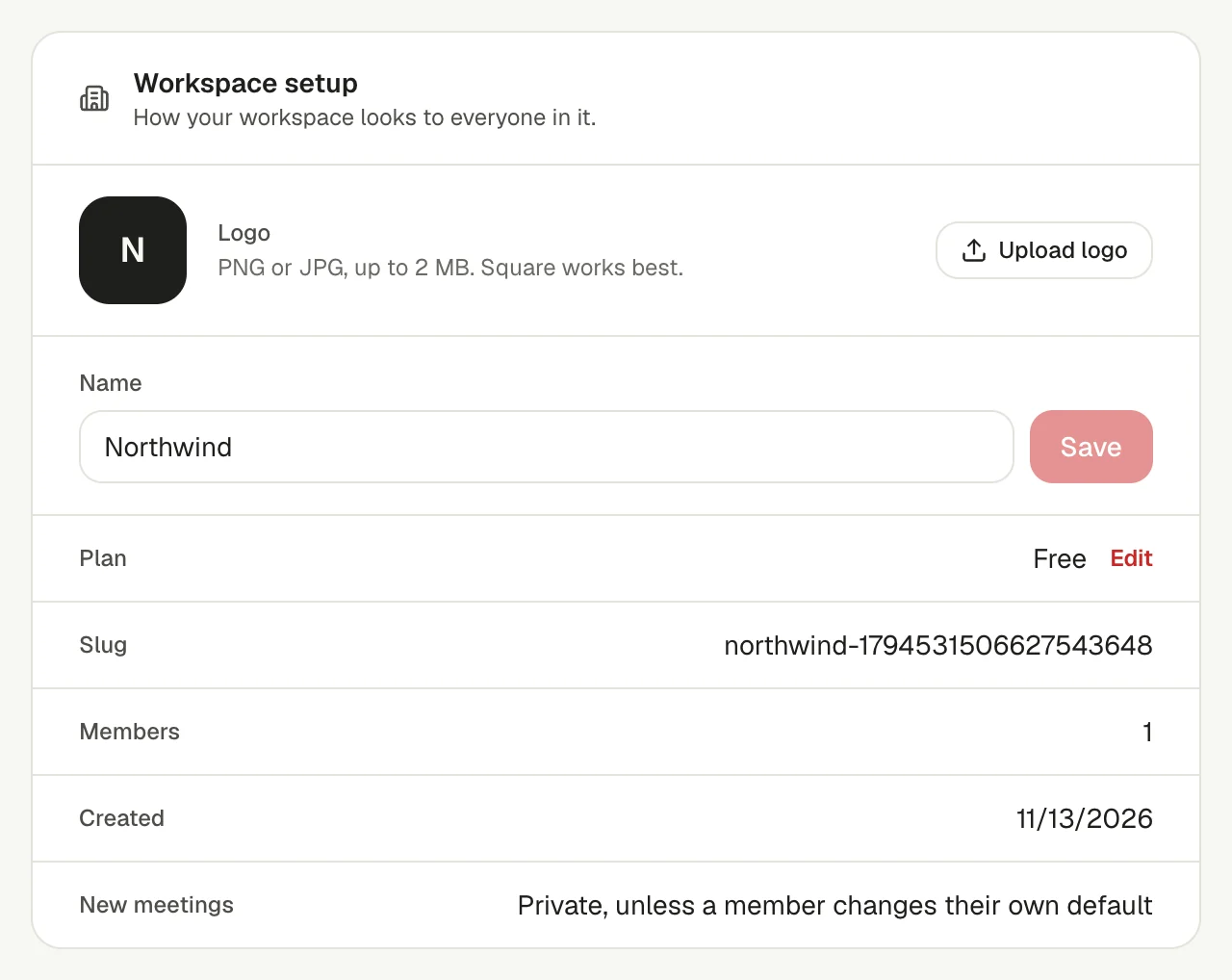
Go to Settings › General:
- Workspace setup: the workspace’s Name and logo (Upload logo, a PNG or JPG up to 2 MB), and its Plan.
- Invites & members: invite people and let your company’s domain join. See Invite teammates and set roles.
- Industry: templates made for your industry come first when you pick one. Nothing is installed or switched on.
- AI context: Internal jargon (names, acronyms and product terms to spell right) and Company description, which Kolasys reads when it writes notes. New meetings use them from then on.
- Audio retention: Auto-delete audio after transcription. See Auto-delete transcripts and audio.
- Single Sign-On (SAML): coming soon. Email for early access to hear when it’s ready.
Other workspace-wide settings
- Settings › Calendar: Automatically record meetings, the bot’s Workspace default name and the Recording notice in the meeting chat. See Record calendar meetings automatically.
- Settings › Preferences: Transcription language for new recordings, and Auto-delete transcripts after.
- Settings › Notifications: Email the summary when notes are ready and the Daily digest. See Notifications and emails.
- Templates, Analytics (Pro and Team), Knowledge base, Import and Billing are in the Workspace part of Settings too. See Choose and create note templates, Import meetings from other tools and Plans, trials and billing.
Switch or add a workspace
Click the workspace name at the top of the sidebar to switch to another workspace you belong to, or to create a new one. Each workspace has its own meetings, members, settings and plan.
Leave or delete a workspace
At the bottom of Settings › General, under Danger zone:
- Leave workspace: you lose access to its meetings, including ones you recorded. An admin can invite you back. The workspace’s only owner can’t leave it.
- Delete workspace: owner only. You type the workspace’s name to confirm. It permanently deletes every meeting, transcript, note and recording in it, removes all members and cancels its subscription.
Was this helpful?
Still need help?
Email hi@kolasys.ai from the address on your account and we’ll reply by email.