Record your first meeting
Pick a way to record, try it on a real meeting, and find your notes a few minutes after it ends.
Choose how to record
The first time you open Kolasys, it asks how you want to get your first meeting in. You can also start from Record your first meeting in the Get started list on Home.
- Record on your computer: the Mac or Windows app records the call from your computer, so nobody sees a bot. See Record on your Mac or PC.
- Send a bot: paste a Zoom, Meet or Teams link and a notetaker joins the call. See Send the meeting bot to Zoom, Meet or Teams.
- Upload or iPhone: upload a recording you already have, or record in the room on your phone. See Upload a recording or Voice Memo.
Try it: send the bot to a call
The quickest way to try Kolasys from the web, with nothing to install:
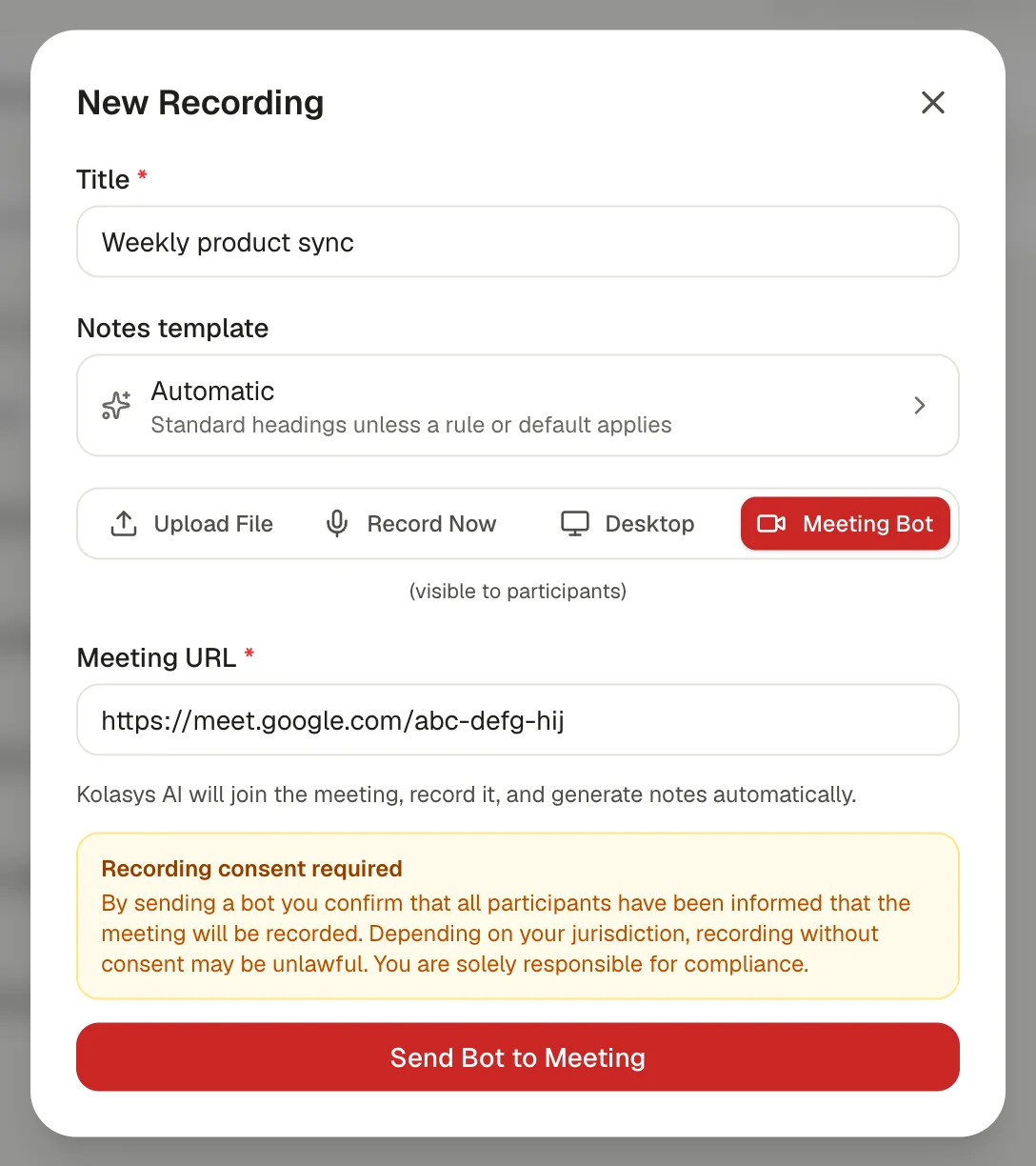
- Go to Meetings and click New Recording.
- Type a Title, like “Weekly team sync”.
- Click the Meeting Bot tab and paste the call’s link into Meeting URL.
- Click Send Bot to Meeting. If the call has a waiting room, let the bot in.
What happens next
- The meeting shows at the top of Meetings. While the bot is in the call, its status reads Joining, Waiting to be let in or Recording.
- When the meeting ends, the status moves through Transcribing and Summarizing to Ready. That usually takes a few minutes.
- Open the meeting to read the notes, the transcript and the action items.
See Your meeting page for what’s on it. If notes don’t arrive, see Notes are stuck processing or failed.
Was this helpful?
Still need help?
Email hi@kolasys.ai from the address on your account and we’ll reply by email.