Create a Space
Make a Space for a team, project or client, choose who can see it, and start with a ready-made wiki, projects and goals.
Create a Space
- In the sidebar, hover over Spaces and click + (Create a Space).
- Pick an icon, type a Name and, if you like, a Description of what the Space is for.
- Choose Open, Closed or Private under Permissions.
- Leave Include starter kit (Wiki, Projects, Goals) on to start with three ready-made pages, or turn it off for an empty Space.
- Click Create Space.
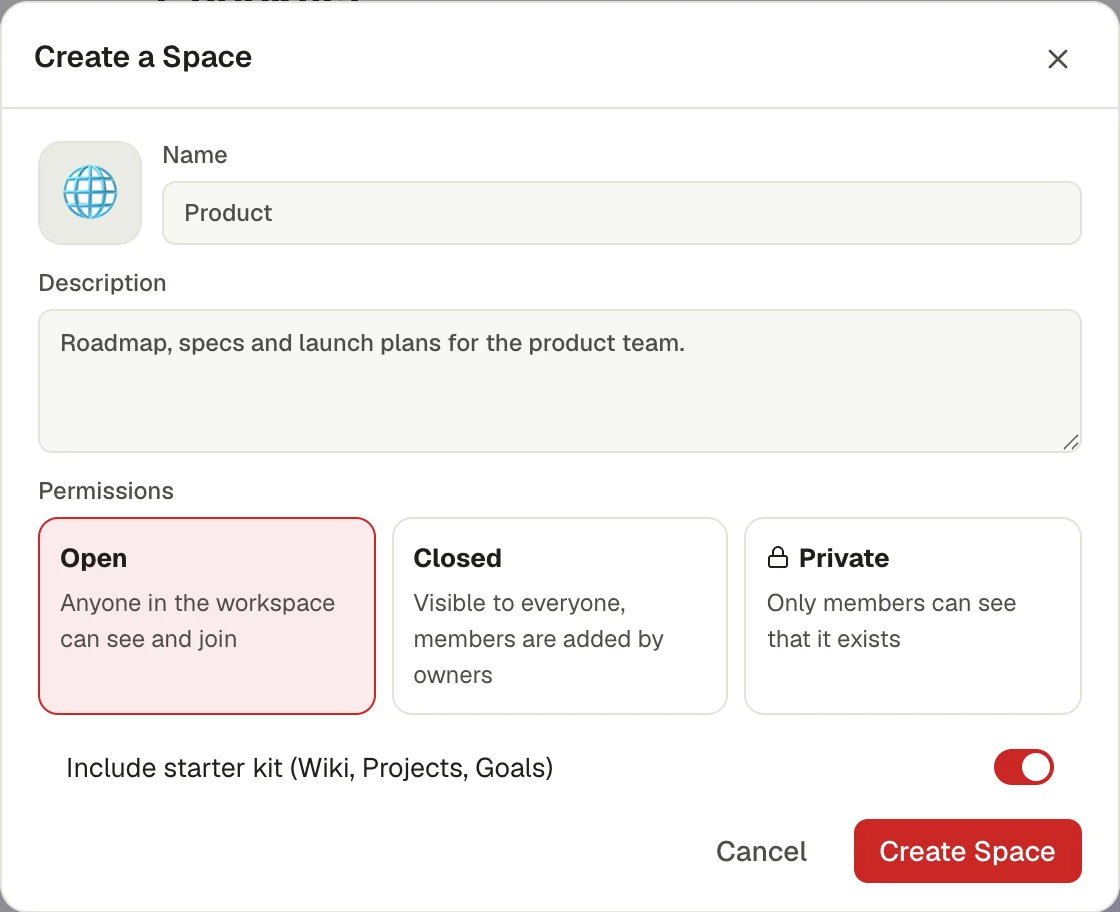
Open, Closed or Private
- Open: anyone in the workspace can see the Space and join it.
- Closed: everyone can see it exists, but only its owners can add members.
- Private: only members know it exists.
You can change this later in the Space’s settings. See Space members, roles and permissions.
Join other Spaces
Click the compass icon (Browse Spaces) next to Spaces to see every Space you can see. Click Join on an Open Space, or ask an owner to add you to a Closed one. Archived Spaces are listed here too, with Open and Unarchive.
Was this helpful?
Still need help?
Email hi@kolasys.ai from the address on your account and we’ll reply by email.